Add or edit a company
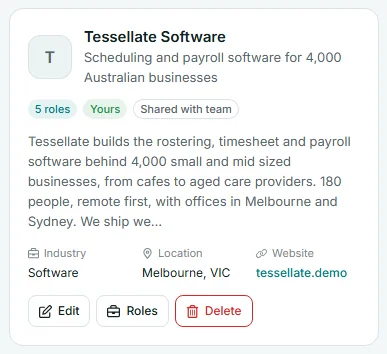
In Risenoow you add a company once and then pick it for every role you post for that employer. The company form holds the name, logo and introduction that candidates see above the job description and hear in the AI interviewer's greeting, so a few careful sentences here pay off on every role.
Where: Companies in the left menu, then Add a company or Edit on a card
Who can use it: Workspace admins and recruiters (recruiters edit only the companies they added)
Time needed: About 3 minutes
Add a company
- Open Companies in the left menu.
- Select Add a company at the top right. On an empty page, select Add your first company.
- Type the Company name. This is the only required field.
- Fill in the other fields you want (see the table below).
- Admins only: tick Share with recruiters if every recruiter should be able to pick this company for their roles. A company a recruiter adds is private to them and the admins.
- Select Add company.
The page shows "Company added." and the new card appears in the list, in name order.
Edit a company
- Open Companies in the left menu.
- Select Edit on the company's card. The form opens with the title Edit company and the current details filled in.
- Change what you need.
- Select Save changes.
The page shows "Company updated." Changes apply to every role linked to the company, so an improved introduction reaches all of them at once.
The fields
| Field | What to enter | |
|---|---|---|
| Company name | The employer's name. Required. It is used in job descriptions and the AI voice greeting. | |
| Company logo | A PNG, JPG or WebP file, 2 MB at most. Select Choose logo. A preview appears before you save. When editing a company with a logo, tick Remove the logo to take it off. | |
| Tagline | One line about the company, shown under its name on the card. | |
| Company introduction | Two to four sentences. It is shown above the job description and spoken in the voice greeting. | |
| Industry | Pick from the list. If yours is missing, choose Other and type it in the box that appears. | |
| Headquarters | Where the company is based, for example "Sydney, Australia". It shows as Location on the card. | |
| Website | The company's site. You can type a plain address such as "yourcompany.com". | |
| Share with recruiters | Admins only. Every recruiter can pick a shared company when creating a role. Only admins and whoever created it can edit or delete it. |
Writing a good introduction
The introduction is read by every applicant and spoken by the interviewer at the start of every voice interview. Keep it short and concrete:
- say what the company does and for whom,
- give one fact that sets it apart, such as its size or where it works,
- say why someone would want to work there.
Example
"Coralbay Health runs three private hospitals and nine community clinics between Brisbane and Wollongong, with about 2,100 staff. We publish the pay band on every role and answer every applicant inside five working days."
Avoid claims you would not want quoted back to you in an interview. The AI writes job descriptions from the facts you give it and is told not to invent things about the employer, so a clear introduction gives it better material.
Logo tips
- Square logos read best on the job cards, as the form says.
- Large images are scaled down for you, and a photo taken on a phone is turned the right way up.
- An image larger than 5000 by 5000 pixels is refused. Save a smaller copy and try again.
- SVG files are not accepted. Export your logo as PNG instead.
- The current logo stays unless you choose a new file or tick Remove the logo. Editing other fields never removes it. If you do both, the new file wins.
If the form shows an error
| Message | What to do |
|---|---|
| Company name is required. | Type a name before saving. |
| Logo file exceeds the 2 MB limit. | Use a smaller file. |
| Unsupported logo format. Use PNG, JPG, or WebP. | Convert the logo to one of those formats. |
| Logo content does not match its extension. | The file is not really the type its name says. Save it again in an image editor. |
| That image has too many pixels to process. | Resize it to 5000 by 5000 pixels or less. |
Frequently asked questions
Can I remove a company's logo without replacing it?
Yes. Select Edit on the card, tick Remove the logo and select Save changes. The company name stands on its own until you add another logo.
Do changes to a company update roles that are already published?
Yes. Every role linked to the company reads its details from the company, so an edited name, logo or introduction shows on all of them.
Why do I not see the Share with recruiters box?
Only workspace admins see it. A company a recruiter adds is visible to that recruiter and the admins, and an admin can share it with the other recruiters.
How long should the introduction be?
Two to four sentences, as the form suggests. It is spoken aloud at the start of each interview, so shorter is kinder to candidates.