Devices and troubleshooting
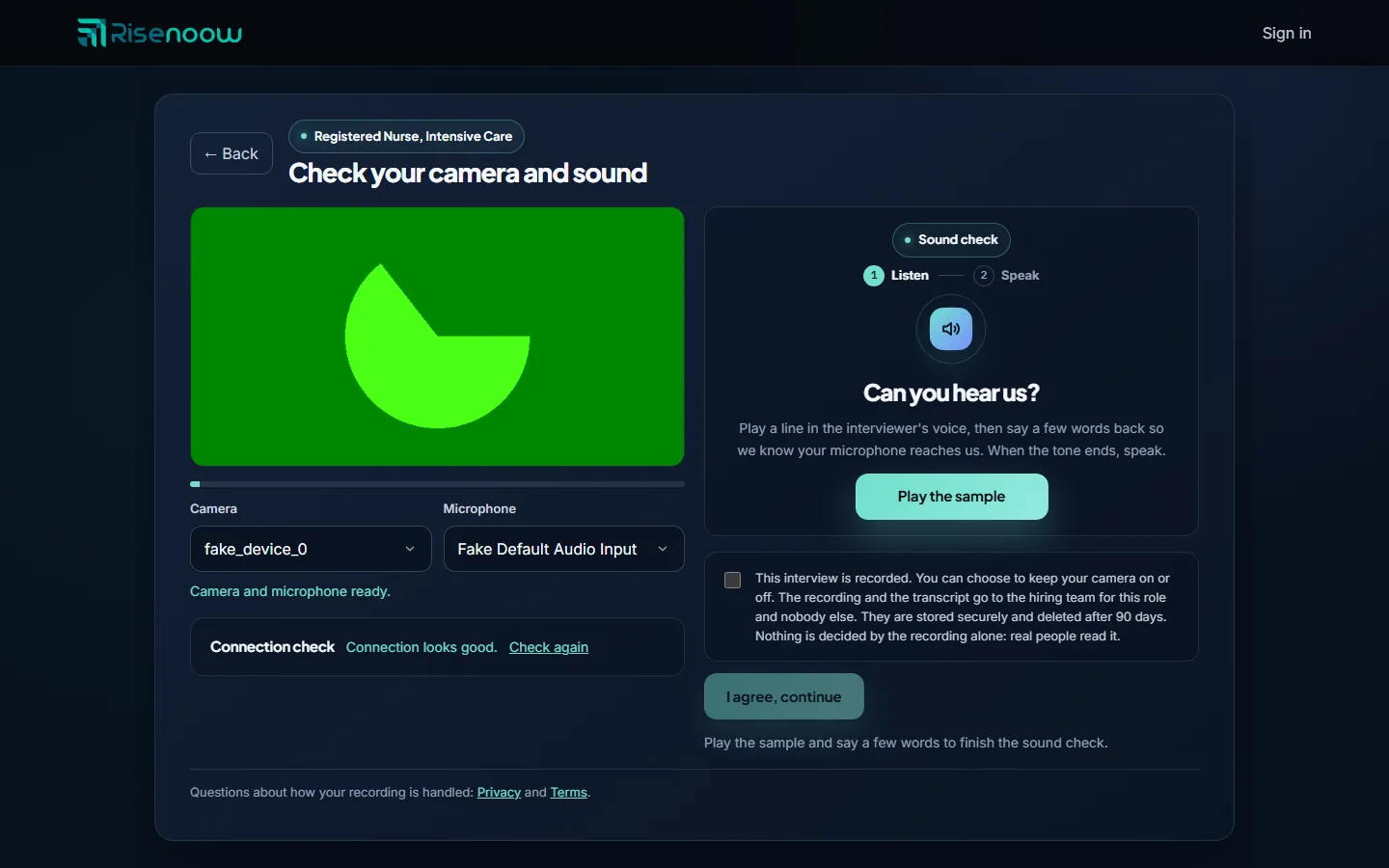
Risenoow interviews run in your web browser on a computer or a phone, with nothing to install. Most problems come down to three things: the browser, the permission to use your microphone or camera, and the network. This page shows how to fix each one, and what to do if a call drops.
Where: Any Risenoow application, voice interview or technical interview
Who it is for: Every job seeker
Time needed: A few minutes
Browsers that work
Use a current version of Chrome, Edge, Safari or Firefox. If a page says "This browser cannot open a microphone", update your browser or switch to one of these.
Before you start
- Use a normal browser window rather than a private one, so your details carry over between the interview and the written questions.
- Close other apps that use your microphone or camera, such as video call apps.
- Plug in your laptop or charge your phone. An interview drains a battery faster than browsing.
- Headphones with a microphone give the clearest sound in a busy room.
Allow your microphone and camera
When Risenoow first asks for your microphone or camera, your browser shows a prompt. Choose Allow. If you chose Block by mistake, the page says "Your browser is not letting this page use your microphone." Fix it in the browser first, then in your device settings if needed.
- Select the padlock or settings icon beside the address bar.
- Set Microphone and Camera to Allow, then reload the page.
- If it still fails, open Settings, then Privacy & security, then Microphone. Turn on microphone access, access for apps and access for desktop apps.
- Do the same under Camera, then reload the page.
- In Chrome, Edge or Firefox, select the padlock or settings icon beside the address bar and allow Microphone and Camera. In Safari, open Safari, then Settings for This Website, and allow both.
- If it still fails, open System Settings, then Privacy & Security, then Microphone, and turn your browser on.
- Do the same under Camera.
- Quit and reopen your browser, then open the page again.
- When the page asks, tap Allow.
- If you blocked it in Safari, open the iPhone Settings, then Safari, then set Microphone and Camera to Ask or Allow.
- In Chrome, open Settings, then Chrome, and turn on Microphone and Camera.
- Reload the page.
- When the page asks, tap Allow.
- If you blocked it, tap the icon to the left of the address bar, open Permissions, and allow Microphone and Camera.
- If it still fails, open the phone Settings, then Apps, then your browser, then Permissions, and allow the microphone and camera while the app is in use.
- Reload the page.
The microphone works but nothing is heard
If the page says "Another program is holding your microphone", close the other app and pick your microphone again. If it says "We could not find that microphone", plug one in or choose another from the Microphone list.
You cannot hear the interviewer
- Turn your volume up and check the sound is going to the speaker or headphones you expect.
- Play the sample in the sound check again with Play it again.
- If your browser blocked sound, the interview says "Select Enable sound to hear the interviewer." Select Enable sound.
Network tips
- Use a strong connection. Sit close to your router, or use a cable on a computer.
- Pause downloads, streaming and other video calls on the same network.
- Some work or public networks block interview calls. If the connection check says "Your connection to the interview service looks slow or blocked. Try another network before you start.", switch to another network, such as your phone's hotspot, then select Check again.
If the call drops
During the voice interview in your application
- Keep the page open. If you see We could not continue, select Try again.
- If your interviewer has not joined, the page tries again for up to a minute. "Your interviewer did not join, which is on us and not on your connection." means you can try again now or in a few minutes.
- The voice interview cannot be skipped. If it keeps failing, check your connection and microphone, then try again a little later.
- If saving was interrupted, select Retry save.
During a technical interview
- Open your invitation link from the email again.
- Select Open the interview again or Rejoin the interview.
- If the interviewer has gone quiet, wait a moment, then use End the interview here if it does not come back. What was recorded so far goes to the hiring team.
Other messages
| Message | What to do | |
|---|---|---|
| "We could not complete the security check." | Reload the page, or try another browser or network. | |
| "Too many requests. Please wait a few minutes and try the link again." | Wait a few minutes, then open the link again. | |
| Your details screen appears again after the voice interview | Your browser did not keep them, often in a private window. Enter them again in a normal window. |
Frequently asked questions
Can I take a Risenoow interview on my phone?
Yes. Interviews run in the browser on a phone or a computer. Use a current browser, allow the microphone, and keep the screen on.
Which browser is best for Risenoow interviews?
A current version of Chrome, Edge, Safari or Firefox. If one gives trouble with your microphone, try another.
Why does Risenoow say my microphone is blocked?
The browser or your device settings deny the page access. Allow the microphone for the site, check your device's privacy settings, then reload the page.
What should I do if my interview freezes?
Select Try again on the same page, or reopen your invitation link for a technical interview. On a technical interview, ending it from the quiet bar keeps what was recorded so far.