Filters, search and sorting
The Risenoow Candidates page shows every application in one table, fifty to a page, and lets you narrow it by name, role, stage and technical interview, then put it in the order you want. Everything you choose stays in the page address, so you can bookmark a view or send it to a colleague.
Where: Candidates in the left menu, the All candidates card
Who can use it: Admins for every role; recruiters for the roles they created
Time needed: Under a minute
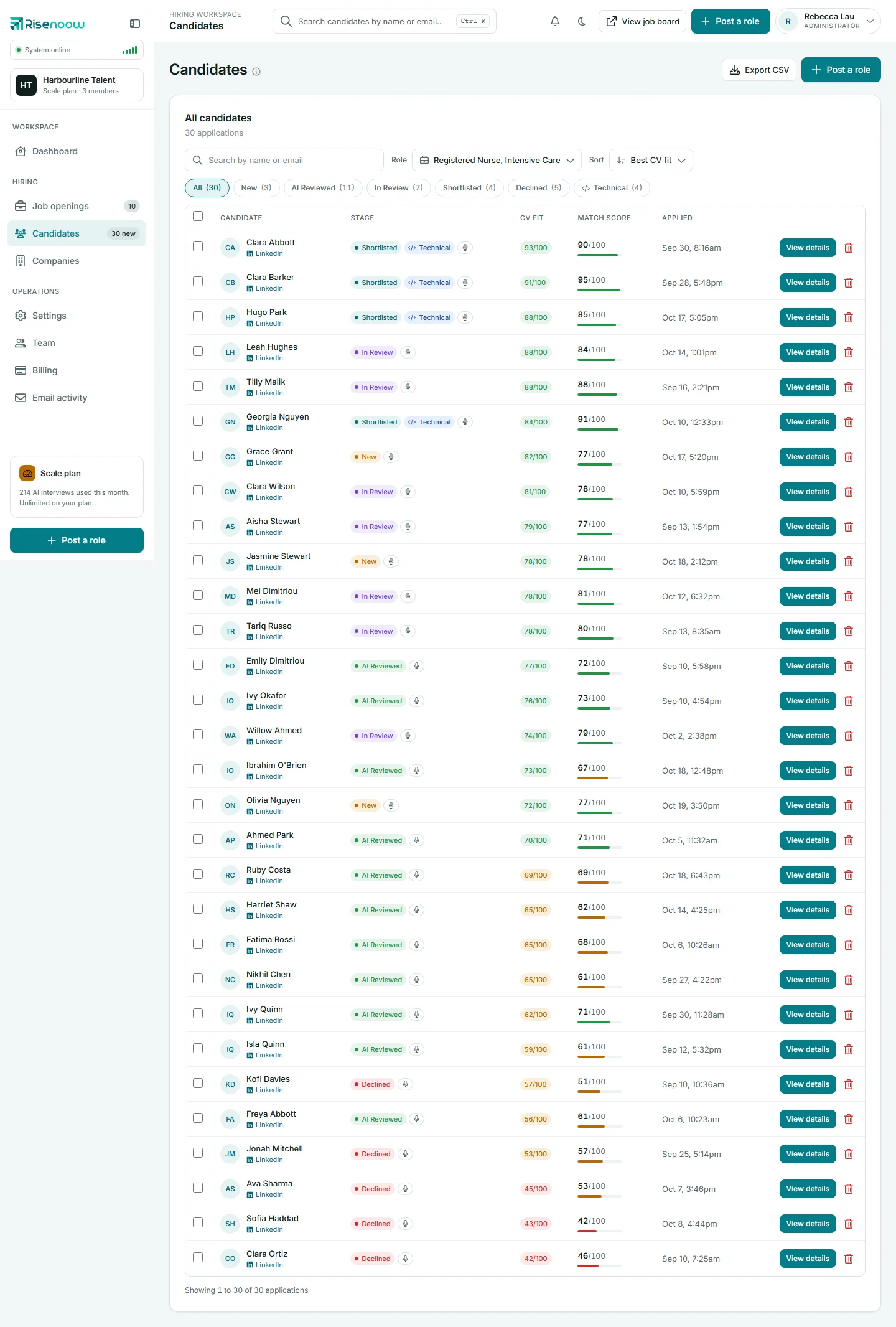
Search by name or email
Type into Search by name or email and press Enter. The list keeps only applications whose name or email contains what you typed, and the count under All candidates changes to say how many match. A Clear search link appears beside the box to bring everyone back.
Search works inside the role, stage and technical filters you already chose, and every stage count is recounted through it.
Pick a role
The Role menu lists All job openings and every role you can see. Choosing a role:
- shows only that role's applicants,
- removes the Role column, since every row is the same role,
- sorts by Best CV fit unless you choose another order,
- adds a short line under each CV fit score. It starts with "Has" and names up to two things the CV shows the role asks for, or, when nothing matched, starts with "Missing" and names a gap.
Changing the role clears the stage filter and goes back to page one.
Good to know
Ranking across all roles mixes scores measured against different job descriptions, so the list keeps the newest first when no role is picked. Pick a role when you want a ranked shortlist.
Filter by stage
The chips under the search box filter by stage. Each one shows how many applications it holds, counted inside the role, search and technical filter you already chose.
| Chip | What it shows |
|---|---|
| All | Every application in view |
| New | Applied, and the written report is not finished yet |
| AI reviewed | The AI has read the application and written its report |
| In review | Moved to In review by your team |
| Shortlisted | Moved forward by your team |
| Declined | Turned down |
| Technical | Candidates who have completed a technical interview |
Technical works as a switch: select it once to filter, again to turn it off. It combines with a stage chip, so Shortlisted plus Technical shows shortlisted people who have sat the technical interview.
Sort the list
Open the Sort menu and pick one of four orders:
| Order | What comes first |
|---|---|
| Newest first | The most recent applications (the default across all roles) |
| Best CV fit | The highest CV fit score (the default for one role); no CV goes last |
| Highest score | The highest match score; unscored applications go last |
| Stage | Shortlisted, then In review, AI reviewed, New and Declined |
You can also select the column headings Stage, CV fit, Match score and Applied to sort by that column. Applied returns to newest first.
What each column shows
| Column | What it shows |
|---|---|
| Candidate | Initials, name, and a LinkedIn link when they gave one (otherwise their email) |
| Role | The role they applied for (hidden when one role is picked) |
| Stage | The stage pill, a Technical pill when the technical interview is complete, and a microphone pill when the voice interview is complete |
| CV fit | Their CV read against the job description, out of 100, or No CV to read |
| Match score | The overall match out of 100 with a coloured bar. Without a number it reads Scoring in the first minutes while the report is being written, and Not scored otherwise |
| Applied | Date and time of the application |
The CV fit pill is green from 70, amber from 50 and red below. The match score bar is green from 80, teal from 65 to 79, amber from 50 to 64 and red below 50, the same colours as on the candidate record.
Open a candidate
- Select anywhere on a row, or the View details button at its end.
- To open the record in a new browser tab instead, hold Ctrl (Cmd on a Mac) as you select the row.
Selecting a checkbox, link or button in a row does its own job and does not open the record.
Move between pages
The list shows fifty applications per page. Under the table you see, for example, "Showing 1 to 50 of 303 applications", the page numbers, and Previous and Next. Every page link keeps your search, role, stage and sort.
Select several applications
Tick the box on each row, or the box in the heading row to select the whole page. A bar appears with the count, Clear and a delete button. See Decline or delete before you use it: deleting cannot be undone.
Export the list
Export CSV at the top right downloads the list as a spreadsheet, through the same role, stage, technical filter and search you have on screen, across every page, in the order you chose in Sort, Best CV fit included. The file has these columns: Candidate, Email, LinkedIn, Role, Stage, Match score, CV fit, Technical interview and Applied.
Frequently asked questions
Why does a candidate show "Scoring" or "Not scored" instead of a number?
Scoring means the written report is still being written, which is usual for the first minutes after someone applies. Not scored means no number is on its way: the candidate supplied too little to score, a requirement declined them, or the report is missing. The record explains which.
Why does a candidate show "No CV to read"?
They applied without a CV, or the file could not be read, so there was nothing to measure against the job description. Their match score still uses everything else they supplied.
Can I search by phone number or role name?
No. Search looks at the candidate's name and email only. Use the Role menu to narrow by role.
Why did my stage filter disappear when I picked a role?
Picking a role starts a fresh list on page one with no stage filter, because the stages of one role rarely match another's. Choose the chip again.