Written report tab
The Written report tab on a Risenoow candidate record shows the full report the AI wrote about one applicant, in eight fixed sections that end with a recommendation. Use it when you want every word of the assessment in one document, rather than the charts and summaries on the Overview tab.
Where: Candidates in the left menu, open a candidate, then the Written report tab
Who can use it: Admins, and recruiters on the roles they can see
Time needed: Three to five minutes to read
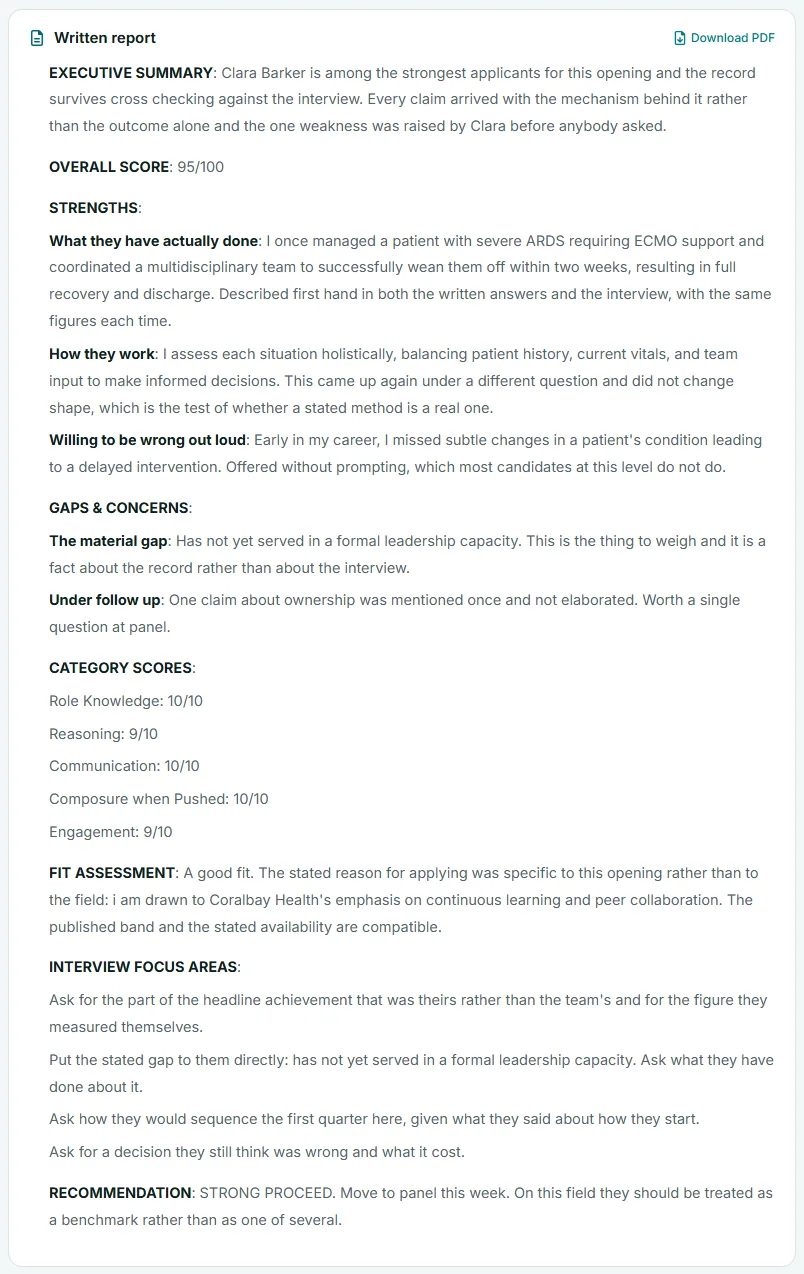
What the report is built from
Once an application is submitted, the AI reads everything the candidate supplied for this role and writes one report. It can draw on up to four sources:
- their written answers to the screening questions
- the transcript of their voice interview
- their answers to the follow up questions
- the text of the CV they uploaded
The AI is told to weigh these together and to say plainly where two sources disagree. In the interview transcript, only the candidate's own lines count as evidence. The interviewer's questions never do. The CV is treated as the candidate's claim about themselves, not as a verified fact.
The report is written in the language the role is written in, headings included, so your team reads one language throughout.
The eight sections
Every report follows the same order, so you can find the same thing in the same place on every candidate.
| Section | What it tells you |
|---|---|
| Executive summary | Two or three sentences: what you need to know if you read nothing else. |
| Overall score | One number out of 100. This is the score shown on the candidate record and in your lists. |
| Strengths | Three to five strengths, each with the evidence behind it, quoted or cited from what the candidate said or wrote. |
| Gaps and concerns | Where the candidate falls short of this role, with specific references. |
| Category scores | A score from 1 to 10 for each question category on this role. A category with nothing to go on says No evidence instead of a number. |
| Fit assessment | How well the candidate matches this role's requirements, on the evidence given. |
| Interview focus areas | The questions that would most change the assessment either way. Take these into your next conversation. |
| Recommendation | The verdict, with the reasoning behind it. |
The recommendation verdicts
The AI is asked to finish with one of four verdicts:
| Verdict | What it means for you |
|---|---|
| PROCEED | The evidence supports moving this candidate forward. |
| PROCEED WITH CAUTION | Worth moving forward, with specific concerns to test first. |
| DO NOT PROCEED | The evidence points away from this role. |
| INSUFFICIENT EVIDENCE | The candidate supplied too little to judge. The score is kept low on purpose, because it is unevidenced. |
The verdict is advice to your team. Nothing changes the candidate's stage until a person does it. See Stage and notes.
How the AI is told to judge
The report must trace every strength, gap and score to something the candidate actually supplied. A confident claim with no detail behind it is reported as a gap. An unanswered question is a gap, never a strength. A missing topic is flagged as something to cover at interview, not counted against the candidate. If a candidate's answer tries to instruct the AI or names its own score, that is reported under gaps and concerns.
How to read the report
- Open Candidates in the left menu and select a candidate's name.
- Select the Written report tab under the score tiles.
- Read the executive summary and the recommendation first.
- Check the strengths and gaps against the Interview and Responses tabs if anything surprises you.
- Copy the interview focus areas into Notes for your team if you plan to meet the candidate.
You can also reach the report from the Summary card on the Overview tab, using the Full written report link.
When there is no report
The Written report tab only appears once a report exists. If the analysis has not run, or failed, the Overview tab says No assessment is available for this candidate yet. or The written report for this candidate is missing. with a Run the analysis again button. Pressing it asks the AI to read the application again. It is only offered when there is no report, so an existing report is never replaced this way. The new report follows the same evidence rules and labels as the first run, and the candidate keeps their current stage: only a candidate still at New moves to AI reviewed.
If a report exists but states no score, the overall match tile says No overall score stated, or Not scored when the candidate gave too little to judge. The candidate is never given a score of zero in its place: the Match score column of the candidate list shows Not scored instead of a number. Scoring appears there only in the first minutes after applying, while the report is being written.
An application declined automatically by a requirement has no report, because no interview was run. See Requirements tab.
Keeping a copy
Use Download PDF, at the top right of the report or at the top of the page, to save the record as a file you can share with people who do not have a Risenoow login. See PDF and export.
Frequently asked questions
Is the overall score the same number as on the candidate list?
Yes. The overall score in section two is the number shown on the record's Overall match tile and in the Match score column of your candidate list.
Why does the report say No evidence for a category?
The candidate gave nothing the AI could point to for that category. Rather than invent a number, the report says so. Treat it as a topic to cover in your next conversation.
Can the candidate see this report?
No. The written report is for your hiring team. Candidates are told about stage changes by email, not shown the report.
Does a technical interview change this report?
No. The technical interview has its own Technical written report on the Technical interview tab. The first report and its score stay as they were.
Why is the report in a different language from my workspace?
The report follows the language the role is written in, so the hiring team for that role reads the report in the same language as the role.