Job description tab
The Job description tab of a Risenoow role holds the text candidates read, the company it is written for, the languages it uses and whether candidates take a voice interview. The questions and the interviews are written from this description, so it is worth getting right.
Where: Job openings, Edit on a role, then the Job description tab
Who can use it: Admins and recruiters (recruiters on their own roles)
Time needed: Two to ten minutes
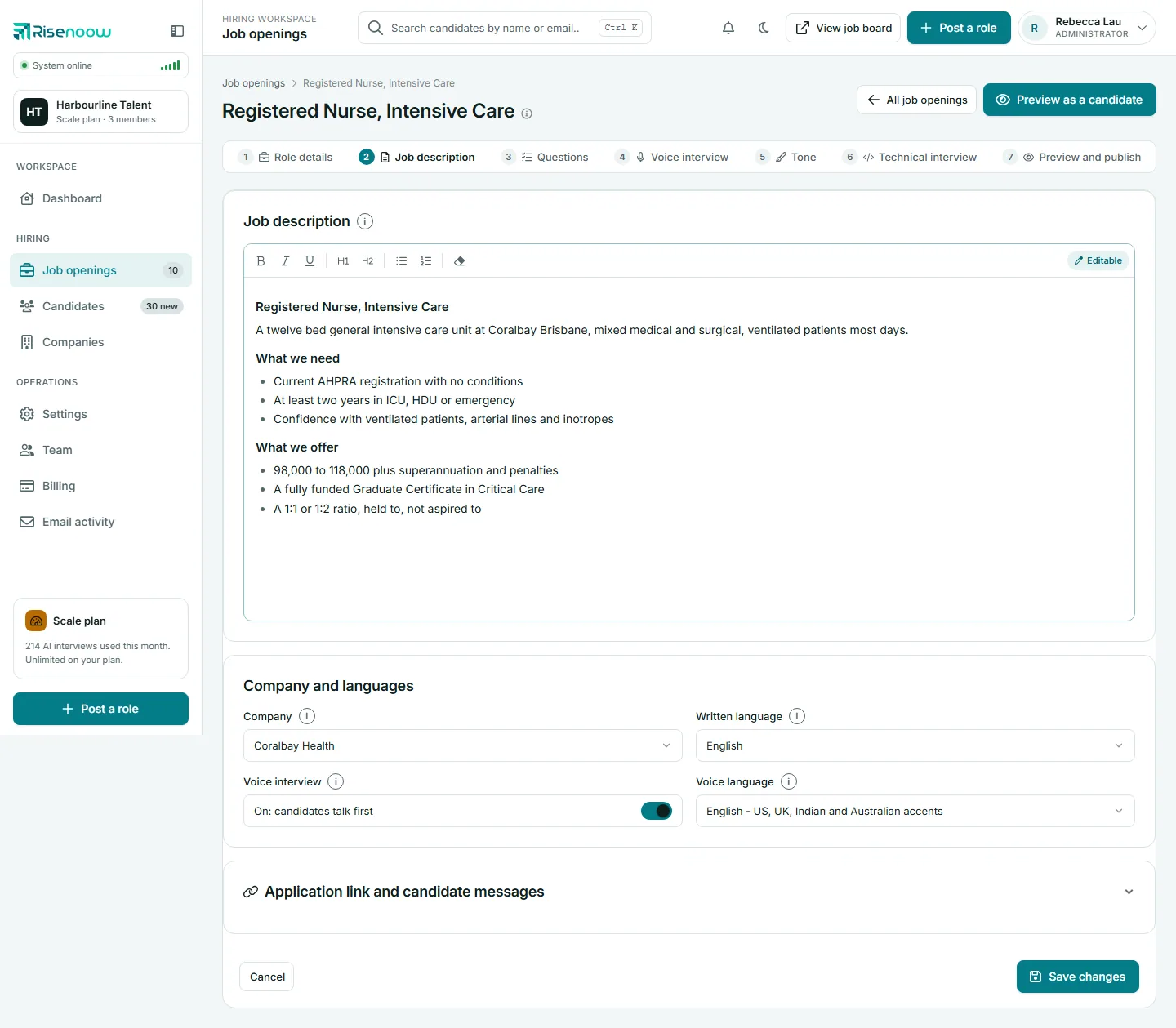
The job description
The editor shows the full description. The toolbar formats the text: bold, italic, underline, two heading sizes, bulleted and numbered lists, and a button that clears formatting. Bold, italic, underline, headings and lists carry through to the preview and the public job page.
The description must be at least a short paragraph. If it is too short, saving is refused with Write at least a short paragraph describing the role.
Company and languages
| Field | What it does |
|---|---|
| Company | The company the role is for. Its name and introduction go into the job description and the voice greeting. Choose No specific company to leave it off. With no companies yet, a link offers to add one |
| Written language | The language of the job description and the written questions |
| Voice interview | A switch. On: candidates talk first or Off: written questions only |
| Voice language | The language the AI interviewer speaks. It can differ from the written language |
The written language list is longer than the voice list. The interviewer speaks English (US or UK accent), Spanish, French, German, Italian, Portuguese and Hindi. When the voice interview is off, the voice language is greyed out but kept, so turning voice back on restores your choice.
Turning the voice interview off
With voice off, candidates go straight from their details to the written questions, and their follow up questions are drawn from their CV. The Voice interview tab disappears from the role until you turn it back on.
Application link and candidate messages
Select Application link and candidate messages to open this section.
- Application link: the end of the address candidates open, after
?form=. Use letters, numbers and hyphens. Changing it breaks links you have already shared. If the address you type is taken, saving is refused and you are asked to choose another. - Welcome message: the first thing a candidate reads. Leave it empty to use the standard wording.
- Thank you message: shown after a candidate sends their application. Leave it empty to use the standard wording.
Saving
- Make your changes.
- Select Save changes. Cancel returns to Job openings without saving.
- A message confirms Job description saved. If you changed the link, the message gives the new address and reminds you to copy it again.
If someone else saved the role while you had it open, nothing is saved and you are asked to reload the page and make your change again. This stops one person's edit silently undoing another's.
Updating the questions after a change
When you change the description of a role that already has questions, the page asks Update the questions to match the new job description? Tick the sets to write again (written, voice and technical), choose how many of each, and select Update the questions. Untick any set you edited by hand and want to keep.
If anyone has applied, the questions are kept instead, because their answers belong to the questions they were asked. You can still edit single questions. See Regenerate with AI.
Frequently asked questions
Can the interview be in a different language from the job ad?
Yes. Written language and Voice language are separate. For example, the ad and questions can be in English while the interview is spoken in Spanish.
Does changing the description change my questions?
Not by itself. You are asked whether to update them, and nothing is rewritten unless you select Update the questions.
What happens to old links if I change the application link?
They stop working. Copy the new link from the role card and send it again.
Where do I add a company?
Use Companies in the left menu. Once added, it appears in the Company list here.