Step 3: Review the job description
Review is step 3 of Post a role in Risenoow. The job description appears in an editor so you can change any word, ask the AI to adjust it with one click or your own instruction, and keep it when it reads right. The questions are written from the version you keep.
Where: Post a role, step 3
Who can use it: Workspace admins and recruiters
Time needed: Two to ten minutes
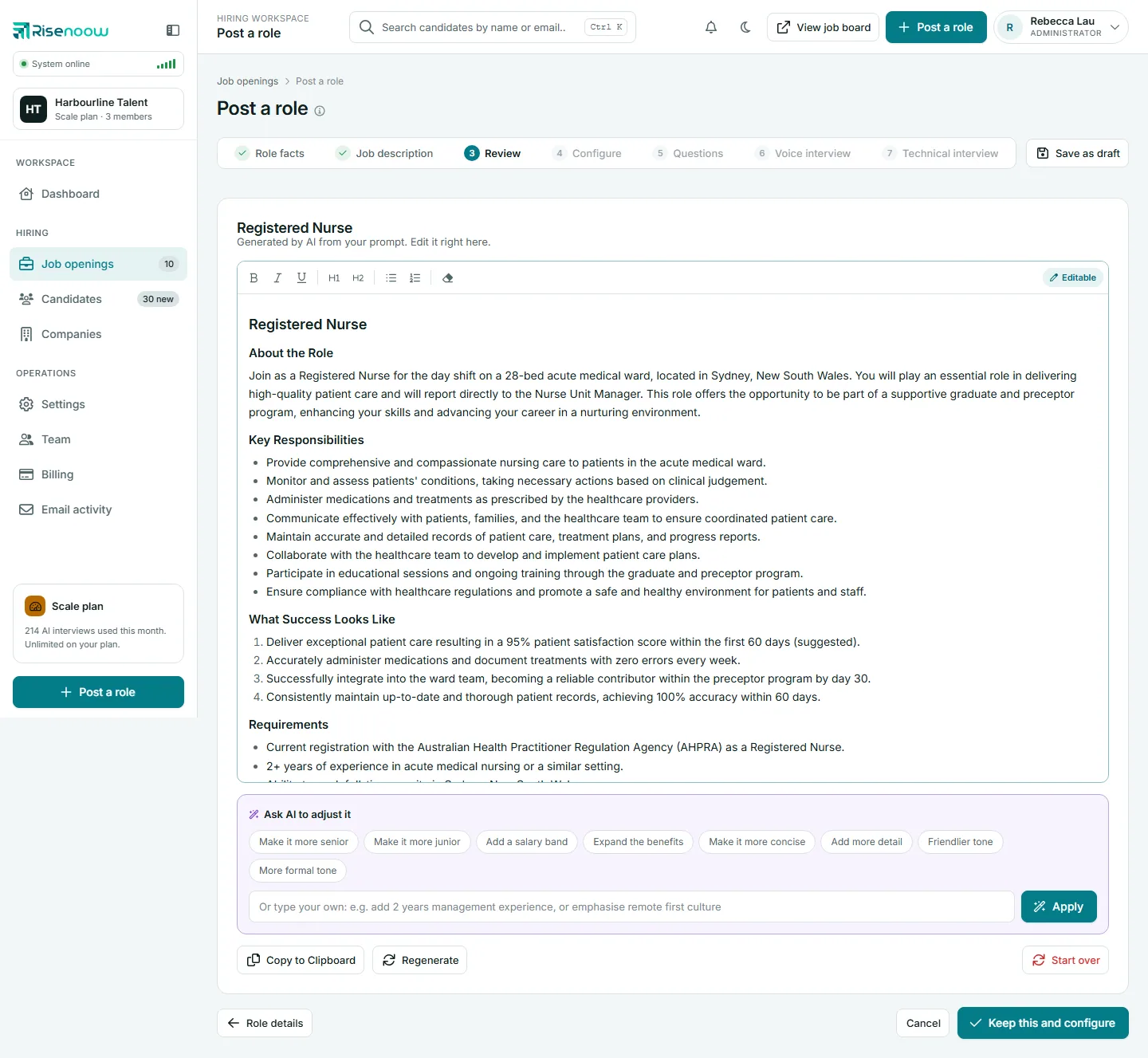
What you see
- The title at the top, with a line saying where the text came from, such as "Generated by AI from your prompt.", "Imported from" a link, "From the text you pasted" or "Extracted from" a file. Then "Edit it right here."
- About your company, when the company you chose has an introduction. It is added at the top of the published description. Change it under Companies.
- The editor, with the same formatting bar as Enter manually. Type straight into it.
What you type is saved as you go, so stepping back and forward never loses it.
Ask AI to adjust it
Each button sends the description on screen, your own edits included, to the AI with one instruction. The AI returns the whole description with that change made and everything else kept.
| Button | What the AI does |
|---|---|
| Make it more senior | Raises the seniority: title, responsibilities and requirements. |
| Make it more junior | Lowers the seniority for a more junior candidate. |
| Add a salary band | Adds a realistic salary range for the role, seniority and market. |
| Expand the benefits | Adds more benefits and perks to What We Offer. |
| Make it more concise | Shortens the whole description without losing key information. |
| Add more detail | Adds depth to the responsibilities and requirements. |
| Friendlier tone | Rewrites it in a warmer, more conversational tone. |
| More formal tone | Rewrites it in a more formal, corporate tone. |
For anything else, type your own instruction in the box (for example, "add 2 years management experience") and select Apply.
Check what you asked for
Add a salary band and Expand the benefits add content you did not give. The AI follows your request, so the band and the perks are its suggestions. Replace them with your real pay and benefits, or enter pay on Role facts, before you publish. The AI is told to keep pay you entered on Role facts exactly as given.
Outside the change you ask for, the AI is told to add no team, reporting line, benefit, pay, customer, market or tool you did not state. Every adjusted draft is checked again for the six sections in order and for filler words, and rewritten once if a check fails.
The buttons under the editor
| Button | What it does |
|---|---|
| Copy to Clipboard | Copies the description, with your edits, so you can use it elsewhere. The label changes to Copied for a moment. |
| Regenerate | Writes a fresh draft from your role facts and notes. Shown only when the description came from Write with AI. Your edits are replaced. |
| Start over | Asks you to confirm, then clears everything in the wizard so you begin again from step 1. |
| Role details | Goes back to step 1. Your description is kept. |
| Cancel | Leaves for Job openings. Use Save as draft first if you want to keep your work. |
| Keep this and configure | Keeps the description as it stands in the editor and moves to step 4, Configure. |
What Start over clears
The confirmation says it plainly: "Everything in this wizard is cleared: the role details, the job description and the question counts." If you saved a draft earlier, it adds that the draft stays on Job openings as a Draft, as it was when you last saved it.
When the Review step is skipped
The Review step appears for Write with AI, Import from URL, Paste text and Upload file. When you write the description yourself with Enter manually, the wizard goes straight to Configure, and Back on Configure returns you to the box you typed it in.
Frequently asked questions
Do my edits survive if I use an Ask AI button?
Yes. The AI works on the description as it is on screen, edits included, and keeps everything the instruction does not touch.
Why is there no Regenerate button?
Regenerate only appears when the AI wrote the description. For pasted, imported or uploaded text, use the adjust buttons or your own instruction.
Can Make it more senior change the job title?
The heading in the description can change. The saved role keeps the Job title from step 1, so change it there if the role itself is now more senior.
Is the salary band from Add a salary band real?
No. It is the AI's estimate for the role and market. Replace it with your real range before publishing.
What happens to the description after Keep this and configure?
It becomes the approved description. The AI reads it, with your role facts, to write every set of questions.