Import a job description from a URL
Import from URL is the tab on step 2 of Post a role in Risenoow for a job that is already advertised online. You paste the link to the posting, Risenoow reads the page and pulls out the text, and you check it on the Review step.
Where: Post a role, step 2, tab Import from URL
Who can use it: Workspace admins and recruiters
Time needed: Under a minute
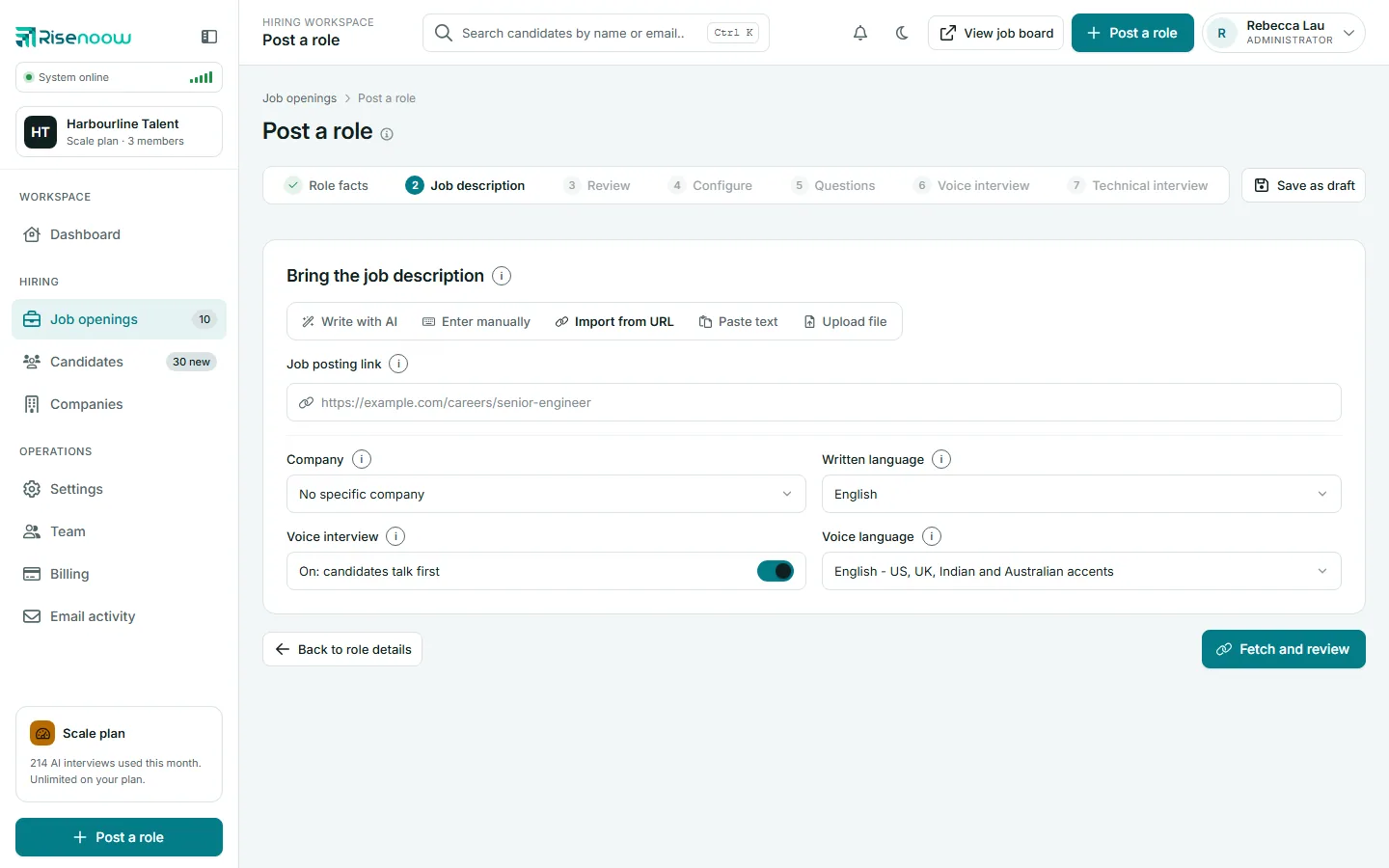
Import a posting
- Open the job posting in your browser and copy its address.
- On step 2, select the Import from URL tab.
- Paste the address into Job posting link.
- Choose the Company, Written language and Voice interview settings.
- Select Fetch and review, or Write it for your company (see below).
A loading screen says the posting is being fetched and read, which can take up to a minute. The Review step then opens with the imported text and a note saying where it was imported from.
Which links work
- A posting on any public careers site or job board.
- An address without "https://" in front is fine. It is added for you.
- Pages that need a sign in, such as LinkedIn behind a sign in, cannot be read. Use Paste text instead.
- A link to a PDF is not read as a page. Download the PDF and use Upload file.
- Private network addresses are refused for security.
What is brought across
The words of the page are kept, and page code and styling are removed. The result is plain text, so headings and bullets from the original page may arrive as ordinary lines. Tidy them on the Review step with the editor, or ask the AI to adjust the text.
The AI reads the text to detect the job title. The role still keeps the Job title you typed on step 1.
Check what came across
Some pages carry menus, cookie notices or other jobs around the advert. Delete anything that is not part of the description on the Review step before you continue.
Write it for your company
If you chose a Company, a second button appears: Write it for followed by the company name. It treats the imported posting as a sample. The AI writes a fresh description for the same role, for your company, in the standard six sections. It keeps the role, responsibilities and requirements, and leaves out the sample's company name, team, benefits, pay, customers and markets.
Use it when the posting belongs to another organisation. Use Fetch and review when the posting is your own.
If the import fails
| Message | What to do |
|---|---|
| "Please paste the link to the job posting." | The box is empty. Paste the address. |
| "We couldn't read enough job content from that link." | The page gave back fewer than 100 characters, often because the site blocks automated reading. Use Paste text instead. |
| "That link points at a PDF." | Download the file and use Upload file. |
Frequently asked questions
Can I import from LinkedIn?
Not from pages that need a sign in. Open the posting, copy the text and use Paste text.
Why did my headings come through as plain lines?
The import reads the words, not the layout. Use the editor on the Review step to turn lines back into headings and lists.
Does the imported title replace mine?
No. The title shown on the Review step is detected from the page, but the saved role keeps the Job title from step 1.
Is the link kept on the role?
The Review step names the address the text came from. The role itself holds the description, not the link.