Accounts and roles
Risenoow has three kinds of account. A workspace Admin runs the hiring workspace, a Recruiter works on their own roles inside it, and a Candidate account belongs to a job seeker. Each account has its own sign in, and each email address can hold only one account.
Who this is for: Anyone deciding which account they need
Where roles are changed: Team in the left menu (admins)
Time to read: About four minutes
The three account types
| Account | Who has it | What they can do |
|---|---|---|
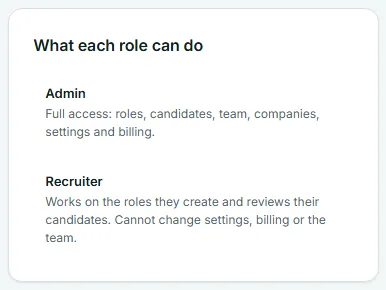
| Admin | The person who created the workspace, and anyone made an admin | Full access: roles, candidates, team, companies, settings and billing. |
| Recruiter | A teammate invited as a recruiter | Works on the roles they create and reviews those candidates. Cannot change settings, billing or the team. |
| Candidate | A job seeker | Applies for roles and uses the candidate portal to follow applications, manage CVs and set job alerts. |
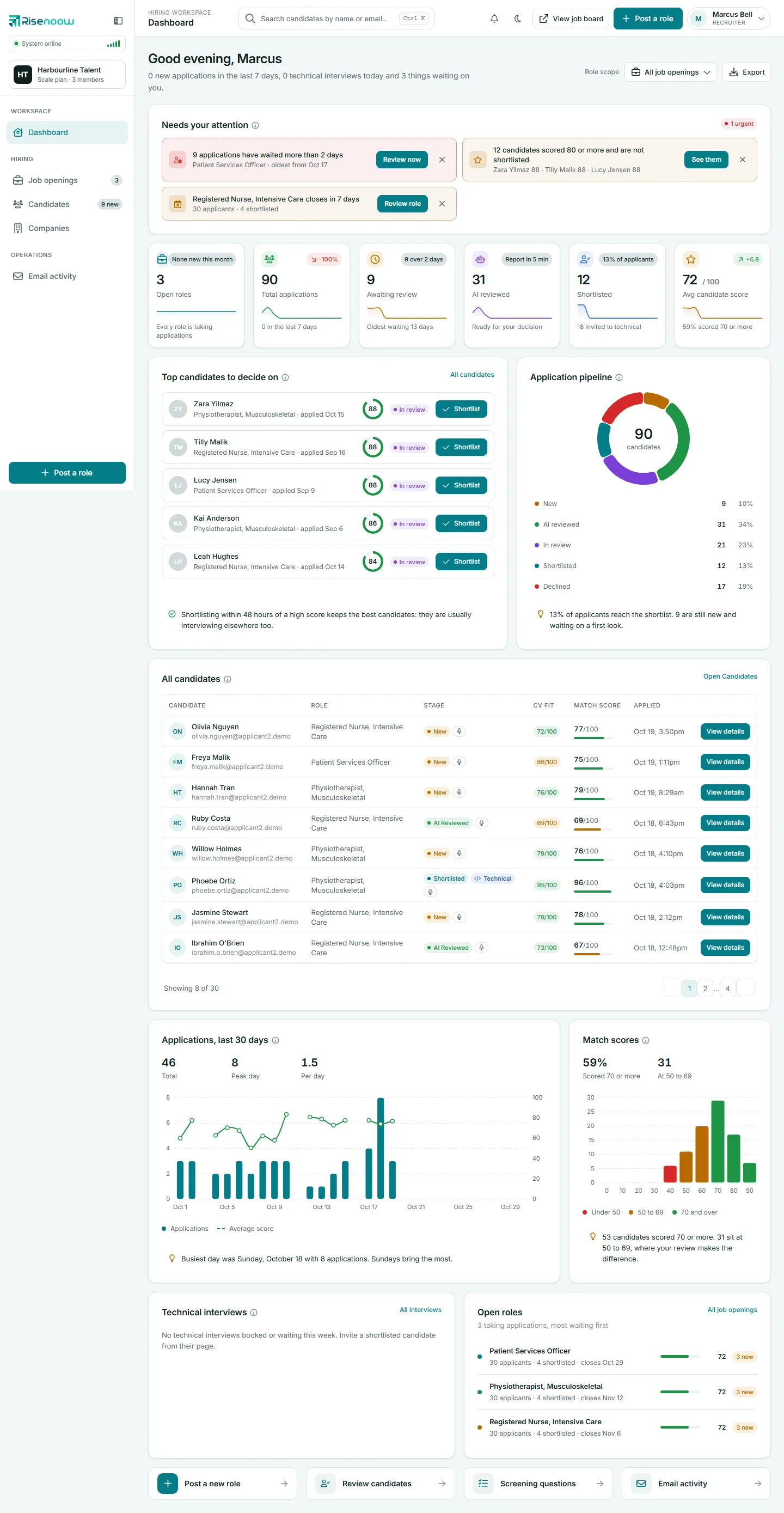
Your account type shows under your name in the top right corner of the app: Admin or Recruiter. The Team page and the invitation email use the same two names.
Workspace admin
An admin sees every role and every candidate in the workspace. Only admins see these items in the left menu:
- Settings, for workspace wide defaults such as the interview and email settings
- Team, to invite colleagues and change what each person can do
- Billing, for the plan, usage and invoices
Admins also see the plan card at the bottom of the left menu, and the Plan and billing, Team and Workspace settings links in the account menu.
A workspace always keeps at least one admin. Risenoow will not let you disable the last one or make them a recruiter, and nobody can change their own role. Ask another admin to do it.
Recruiter
A recruiter has the same hiring tools as an admin, scoped to their own work:
- Job openings lists the roles they created.
- Candidates and the dashboard show only the people who applied for those roles.
- The left menu has no Settings, Team or Billing.
How each account is created
- Admin. Create a workspace from the sign up page. The person who signs up becomes its first admin. See Create an employer account.
- Recruiter or another admin. An admin invites them from Team in the left menu and picks Recruiter (their own roles only) or Admin (full access). The invitation email carries a link that works for 7 days. See Invite a colleague.
- Candidate. A job seeker gets an account in one of two ways. Applying for a role creates one, and the confirmation email has a link to set a password. Or they select Create a free account on the sign in page. See Create a job seeker account.
One email, one account
An email address can belong to only one Risenoow account. If you already applied for a job with your work email, use a different address to create a workspace, or the sign up page will say an account already exists.
Changing someone's role
An admin can change a teammate between Recruiter and Admin on the Team page. Each teammate also takes up a seat on your plan. For the details, see Team and Permissions.
Frequently asked questions
What is the difference between an admin and a recruiter?
An admin has full access, including settings, billing and the team. A recruiter works on the roles they create and reviews those candidates, and cannot change settings, billing or the team.
Can a recruiter see candidates for someone else's role?
No. A recruiter sees only the roles they created and the people who applied for them. Admins see every role in the workspace.
Can I change my own role?
No. Another admin has to change it for you. This stops a workspace from being left without an admin by accident.
Can I use the same email as a job seeker and as an employer?
No. Each email address holds one account. Use a different address for the second account.
Do candidates need an account to apply?
No. Candidates apply from the role's page. Applying creates their account, and the confirmation email has a link to set a password if they want to use the candidate portal.