Create an employer account
An employer account on Risenoow is a hiring workspace: one private space for your roles, your candidates and your team. You create it from the sign up page in three short steps, and you become its first admin. No card is needed to start.
Where: risenoow.com/signup.php, or Create a workspace on the sign in page
Who: Anyone hiring for a team
Time needed: About two minutes
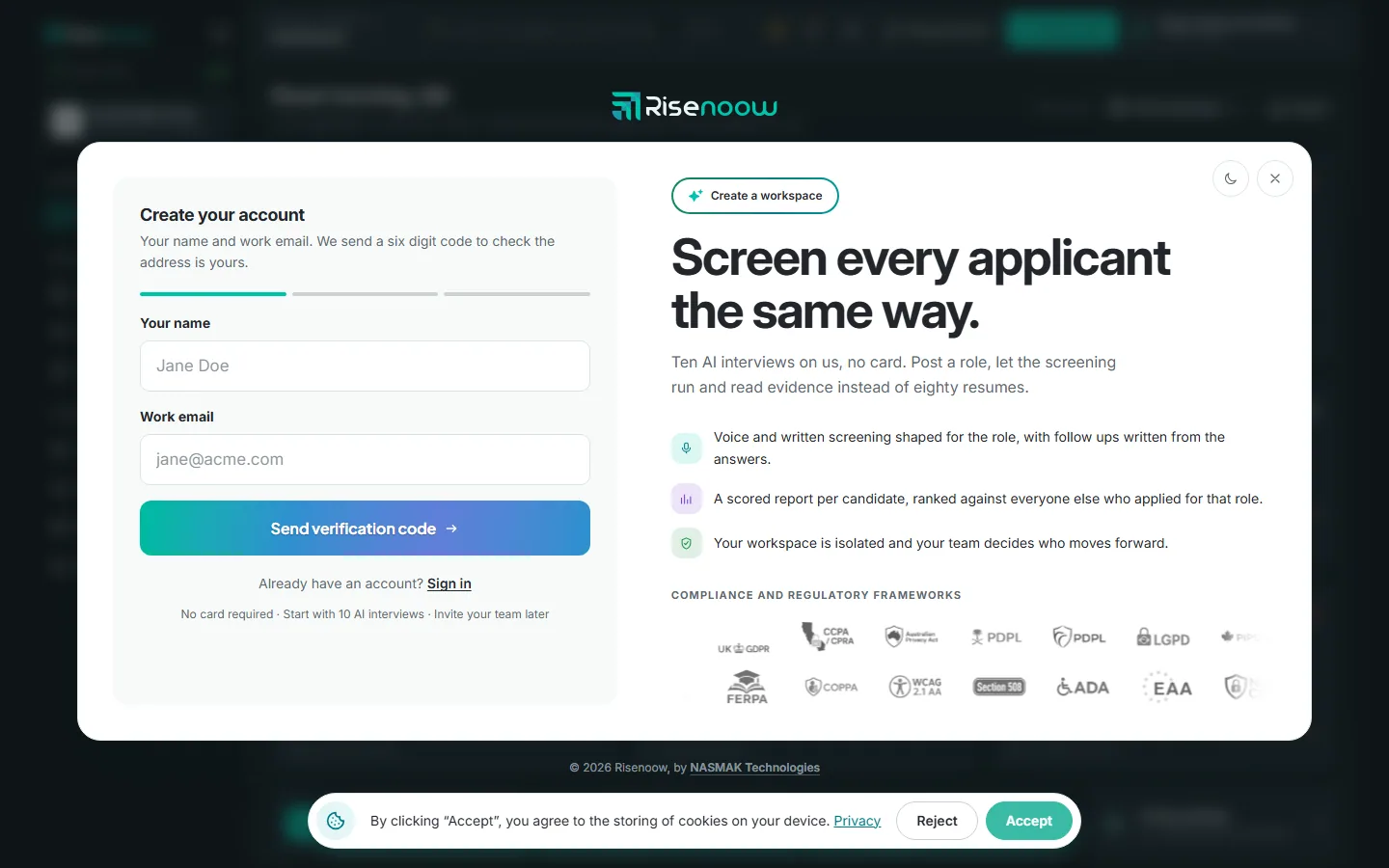
How to create your workspace
- Open risenoow.com/signup.php, or select Create a workspace on the sign in page.
- Under Create your account, enter Your name and your Work email.
- Select Send verification code. We email a six digit code to that address.
- Under Check your inbox, type the code into the six boxes, or paste it in one go. Select Verify email.
- Under Set up your workspace, enter the Company or workspace name.
- Choose a Password and type it again in Confirm password.
- Tick the box to agree to the Terms & Conditions and Privacy Policy.
- Select Create workspace.
Risenoow signs you in straight away and opens the Get started page, which walks you through your details, your company and your first role. See First run setup. We also send you a welcome email.
About the verification code
We check your email before the account exists, so every workspace starts with an address that really receives mail. That matters, because candidate reports are emailed to it.
| What to know | |
|---|---|
| How long it lasts | Ten minutes, and it works once. |
| Did not arrive? | Check your spam folder, then select Send a new code. |
| Wrong address? | Select Use a different email to start again. |
| Wrong code | You have five tries. After that, wait a few minutes and try again. A new code does not reset the count. |
Code requests are limited
To protect against abuse, the number of codes you can request in an hour is limited. If you see Too many code requests, wait a while before trying again.
Choosing a password
Your password must be at least 8 characters and no more than 72. Pick one you use nowhere else. The rules are the same everywhere you set a password in Risenoow. See Sign in and passwords.
Your free trial
A new workspace starts on a free trial that lasts 14 days. The sign up page shows how many AI interviews the trial includes, and no card is required. When you are ready to choose a plan, see Billing in the left menu, or compare plans on the pricing page.
What is set up for you
When the workspace is created, Risenoow fills in a few defaults so you can start straight away:
- The workspace takes the name you typed. You can rename it later as Workspace name under Settings.
- Candidate report emails go to every active admin, which at first is you. You can name other addresses as the Default report email under Settings, and a role's own hiring team email comes before both.
- Candidates see a short default welcome message and completion message. Each role can have its own.
See Settings and Notifications and email.
If something goes wrong
| Message | What to do |
|---|---|
| An account with this email already exists. Try signing in. | That address already has a Risenoow account, perhaps from a job application. Sign in, or use a different email. |
| Please enter your name and a valid email address. | Check both fields are filled and the email is complete. |
| Too many sign-up attempts. Please try again later. | Too many sign up attempts came from your connection in the last hour. Wait and try again. |
| We could not confirm you are human. Please reload the page and try again. | The page runs a quick human check. Reload the page and try once more. |
Frequently asked questions
Do I need a credit card to sign up?
No. A new workspace starts on a free trial with no card required.
How long is the free trial?
The trial lasts 14 days. The sign up page shows how many AI interviews it includes.
I did not get the verification code. What should I do?
Check your spam folder, then select Send a new code. A code lasts ten minutes. If the address was wrong, select Use a different email.
Can I use a personal email address?
The form asks for a work email, and any valid address that can receive the code works. Candidate report emails go to it, so use one your team reads.
Can I add my colleagues during sign up?
Not during sign up. Invite them afterwards from Team in the left menu, or from the last step of the Get started page.