Step 5: Check the written questions
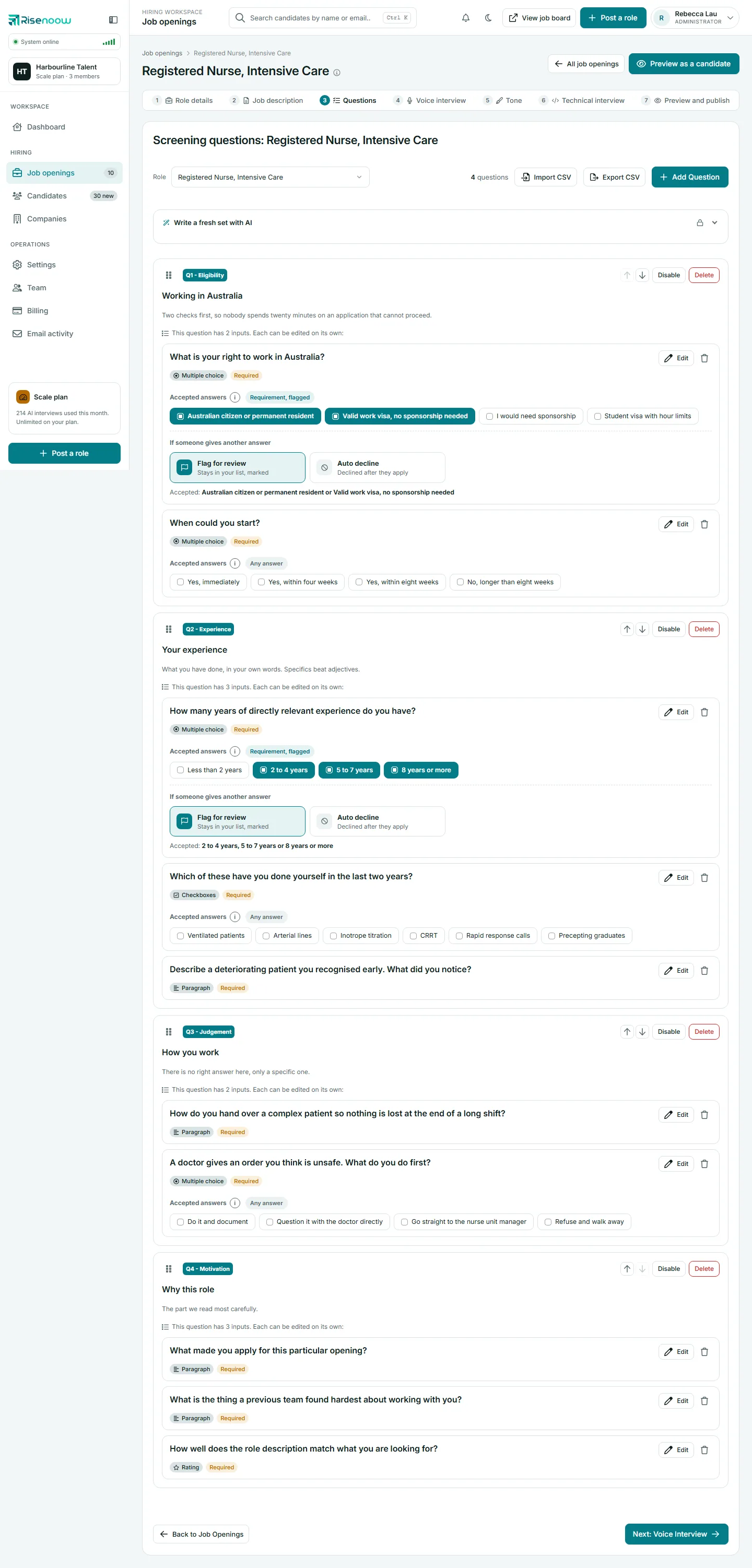
Questions is step 5 of Post a role in Risenoow, the first screen after the AI has written your role. It confirms the role is created and shows the written screening questions candidates will answer, ready for you to check, edit, reorder or remove. It is the same screen as the role's Questions tab, with the Post a role steps on top.
Where: Post a role, step 5, after Generate questions
Who can use it: Workspace admins and recruiters
Time needed: Five to ten minutes
The role is created
At the top, a card names the role followed by is created. It counts what the AI wrote:
- Written questions
- Voice questions, when the role has a voice interview
- Technical questions
The role is saved but not published. Nobody outside your workspace sees it until you publish it, and every change on this screen saves as you go.
If the voice or technical questions could not be written, an amber warning under the counts says so, for example "The voice interview questions could not be written. Add them on the next step, Voice interview, before you publish." Add those questions by hand on their step.
What the AI wrote
The written questions follow a fixed order: requirement questions first, then questions about the candidate's experience and the settings they have worked in, then evidence of results, a scenario about the first weeks in the job, and practical questions last, such as start date. Each question has one answer field.
Every question ties back to something in your job description. The AI avoids generic questions such as "Tell us about yourself", and does not ask candidates to rate themselves, apart from at most one rating question when the description names two or more essential tools.
Requirement questions start as Flag
A requirement question has Accepted answers ticked. Under If someone gives another answer there are two choices:
| Choice | What happens |
|---|---|
| Flag for review | The candidate stays in your list, marked. |
| Auto decline | The candidate is declined after they apply. |
Every requirement question the AI writes starts on Flag for review, so nobody is turned away by a question you have not checked. Switch any one to Auto decline when the condition is truly essential, such as a required licence. See Requirement questions.
Edit the questions
- Read each question as a candidate would.
- Select Edit on a question to change it, or tick and untick its Accepted answers. A question that groups several answer fields has Edit heading for its heading, and each field under it has its own Edit.
- Use the arrows or the drag handle to change the order.
- Select Disable to hide a question without deleting it, or Delete to remove it.
- Select Add Question to write one of your own.
- When the list reads right, select Next: voice interview.
When the role has no voice interview, the button is Next: technical interview instead.
The toolbar also has Import CSV and Export CSV, and Write a fresh set with AI replaces the questions while nobody has applied.
Moving around
The step bar works on the saved role now. Role facts opens the role's details, Job description and Review open its description, and Configure opens Write a fresh set with AI on this page.
Frequently asked questions
Is the role live now?
No. It is saved unpublished. You publish it at the end of step 7, from the preview.
Why are all requirement questions set to Flag for review?
So that no candidate is declined by a question you have not checked. Change a question to Auto decline yourself when the condition must be met.
Can I add my own questions?
Yes. Select Add Question. Your questions sit alongside the AI's and work the same way.
What types of answer can a question have?
Short answer, paragraph, multiple choice, checkboxes and rating. See Field types.